
Instructions
Instructions for Adlivo
How to update variables:
- Open your project in Designer.
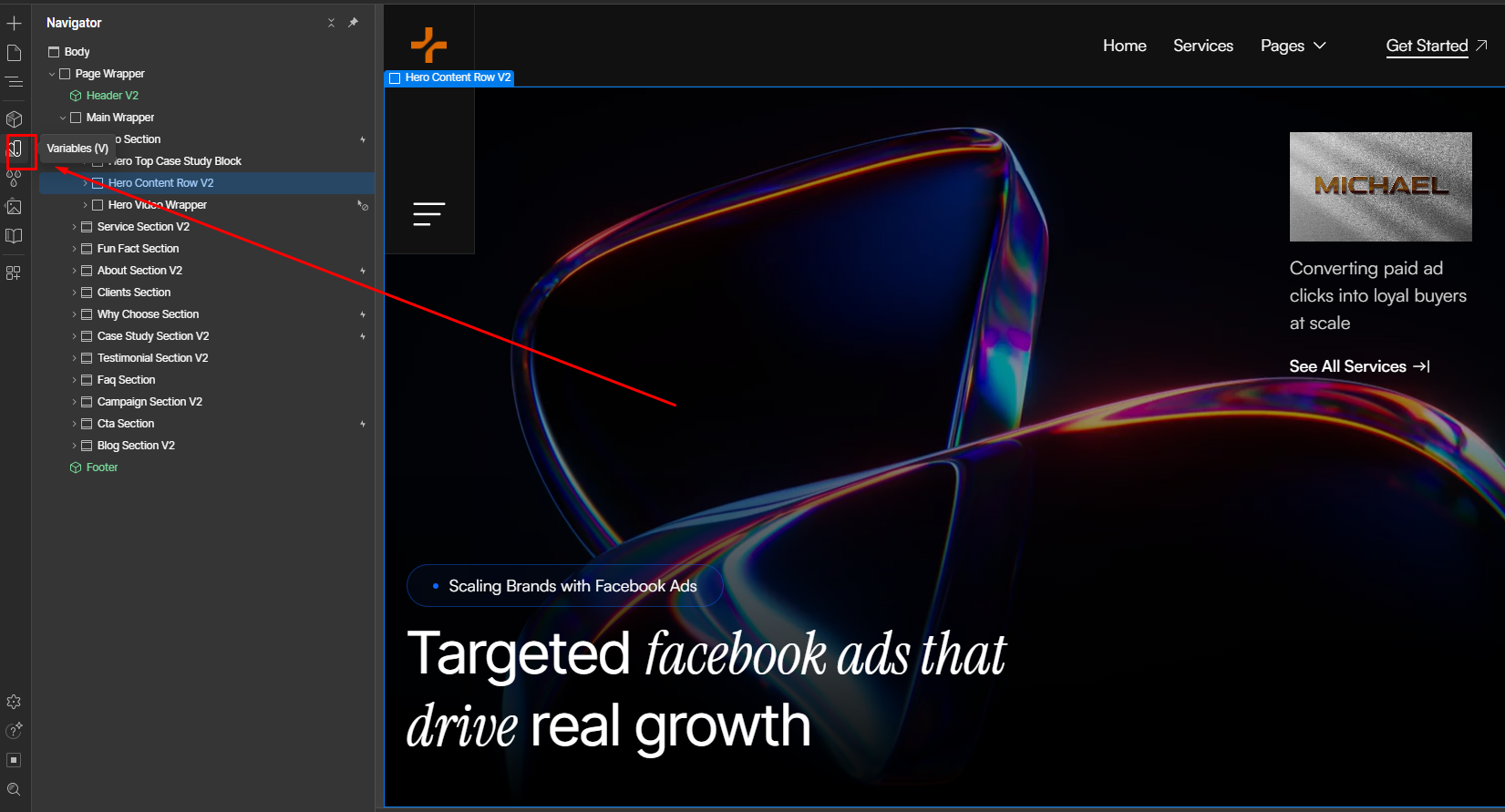
- Find the Variables panel:
- Click the Variables icon (a circle with a dot inside) located near color or typography controls in the Style panel.
- Or press
Shift + Cmd/Ctrl + Mto open the Style Manager, then select Variables tab.
- Here you’ll see your color and typography variables grouped (like
--Primary Color,--Heading Font Size). - Click any variable to edit its value.
- Your site updates automatically everywhere that variable is used.
You can also use the Style panel to directly change colors and typography for individual elements, if you don’t want to use variables.
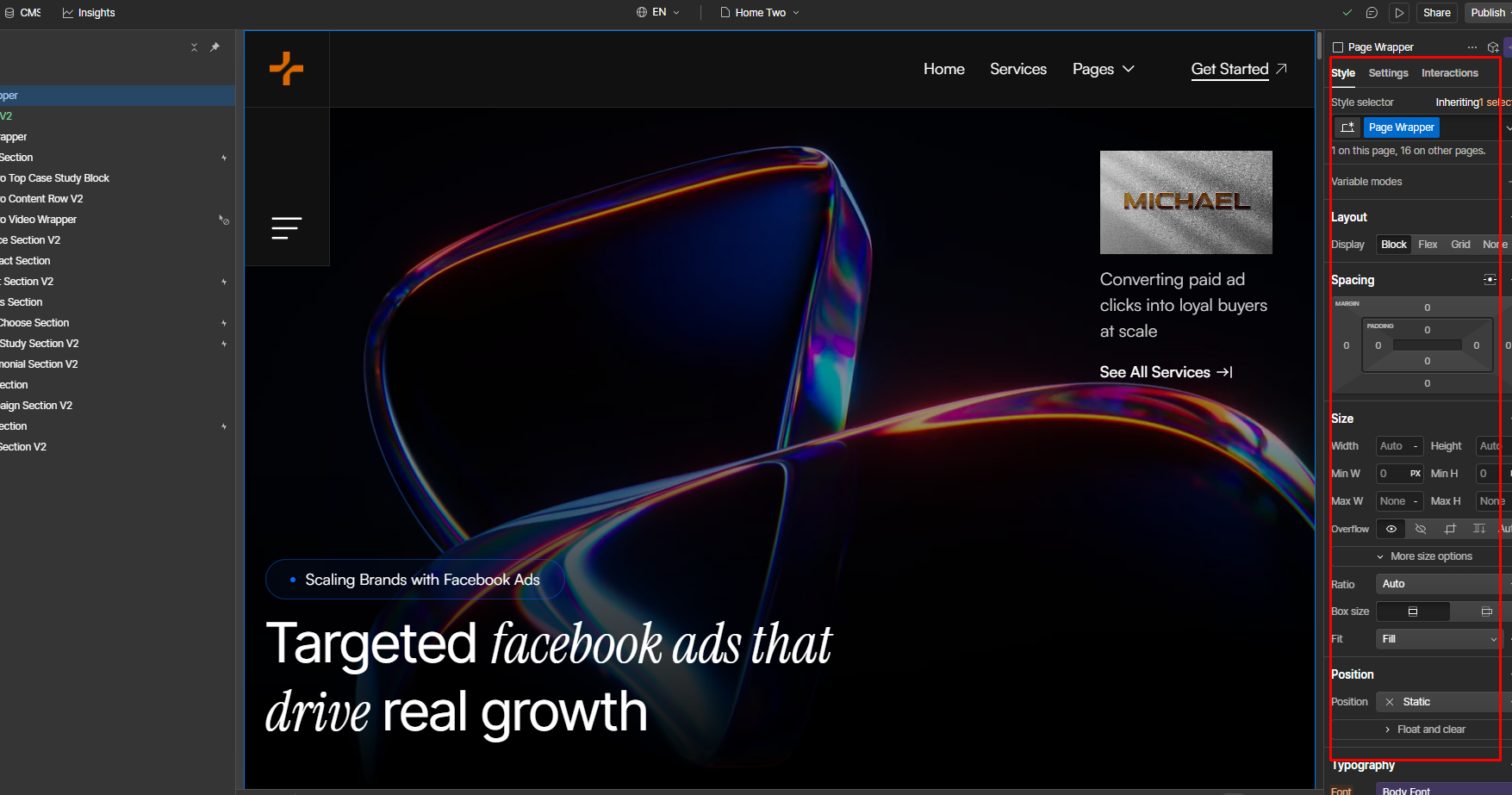
To change text:
- Click directly on any text in Designer and type your own content.
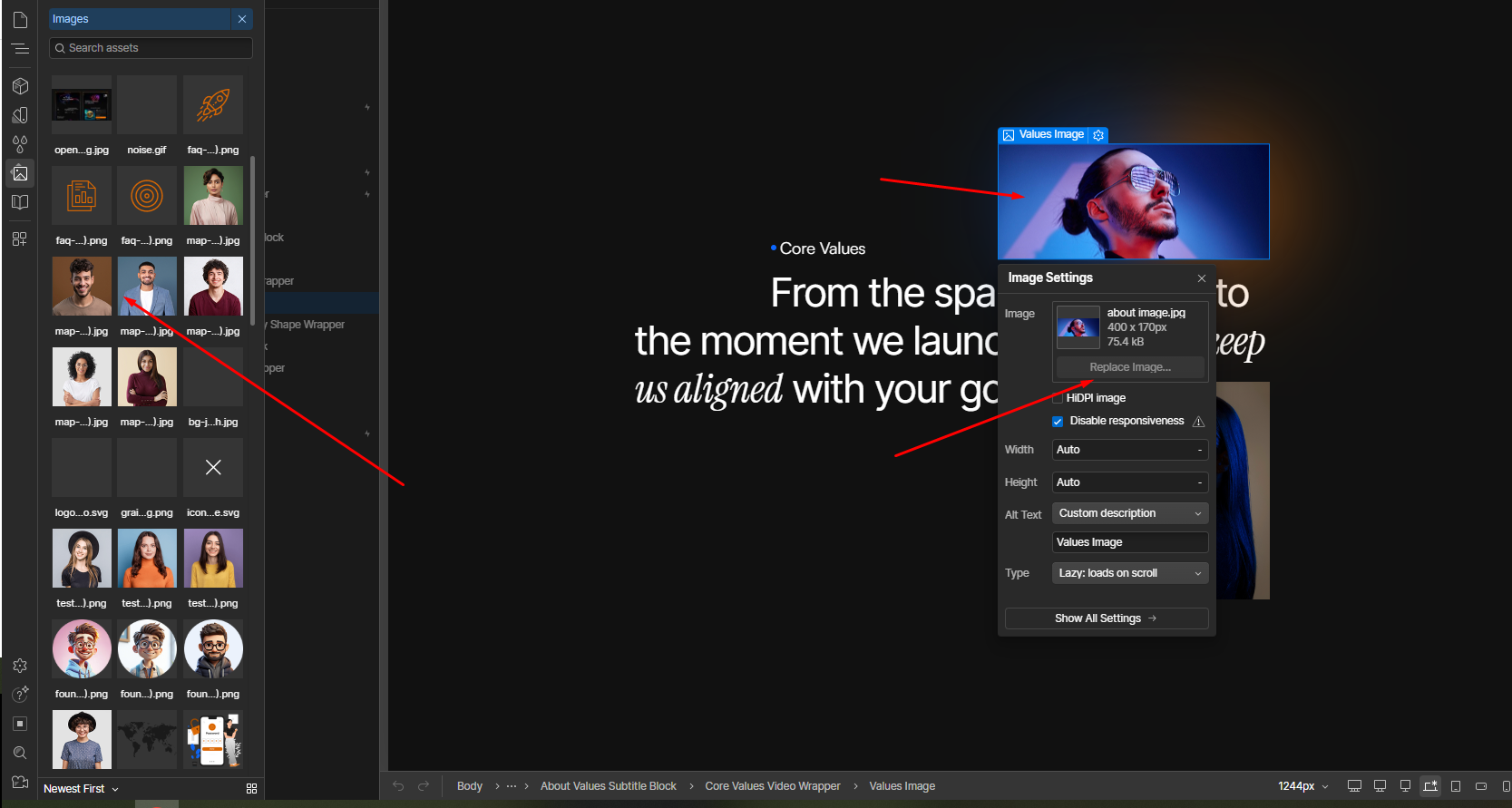
To change images:
- Select the image.
- In the Settings panel (gear icon), click Replace Image.
- Upload your new image or pick one from Assets.
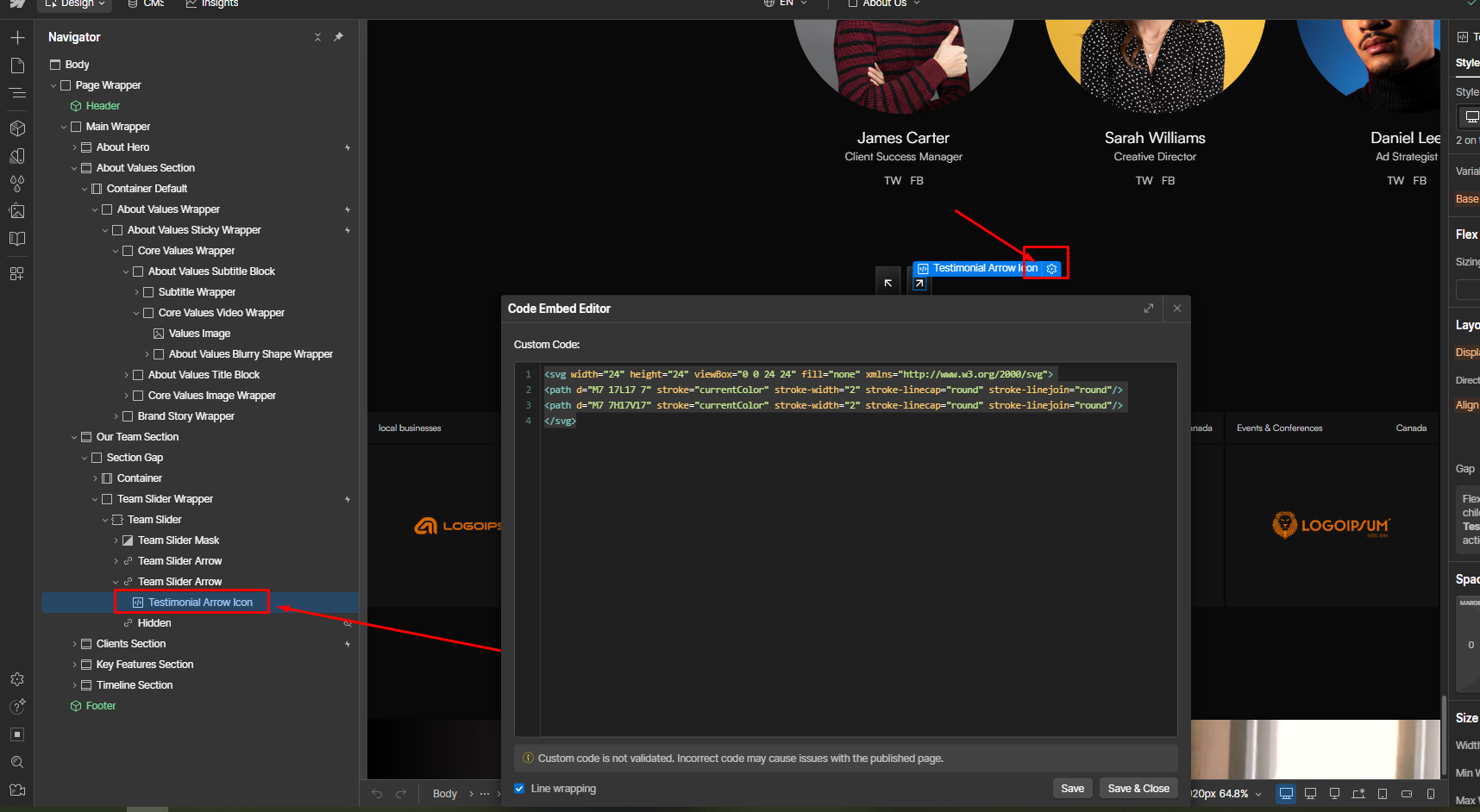
To replace an icon:
- Click the icon element → Edit Embed.
- Paste your new
<svg>...</svg>code. - Save, and the icon updates instantly.
- Open the Pages panel.
- Click the gear icon beside the page.
- Update:
- SEO Title
- Meta Description
- Open Graph Image
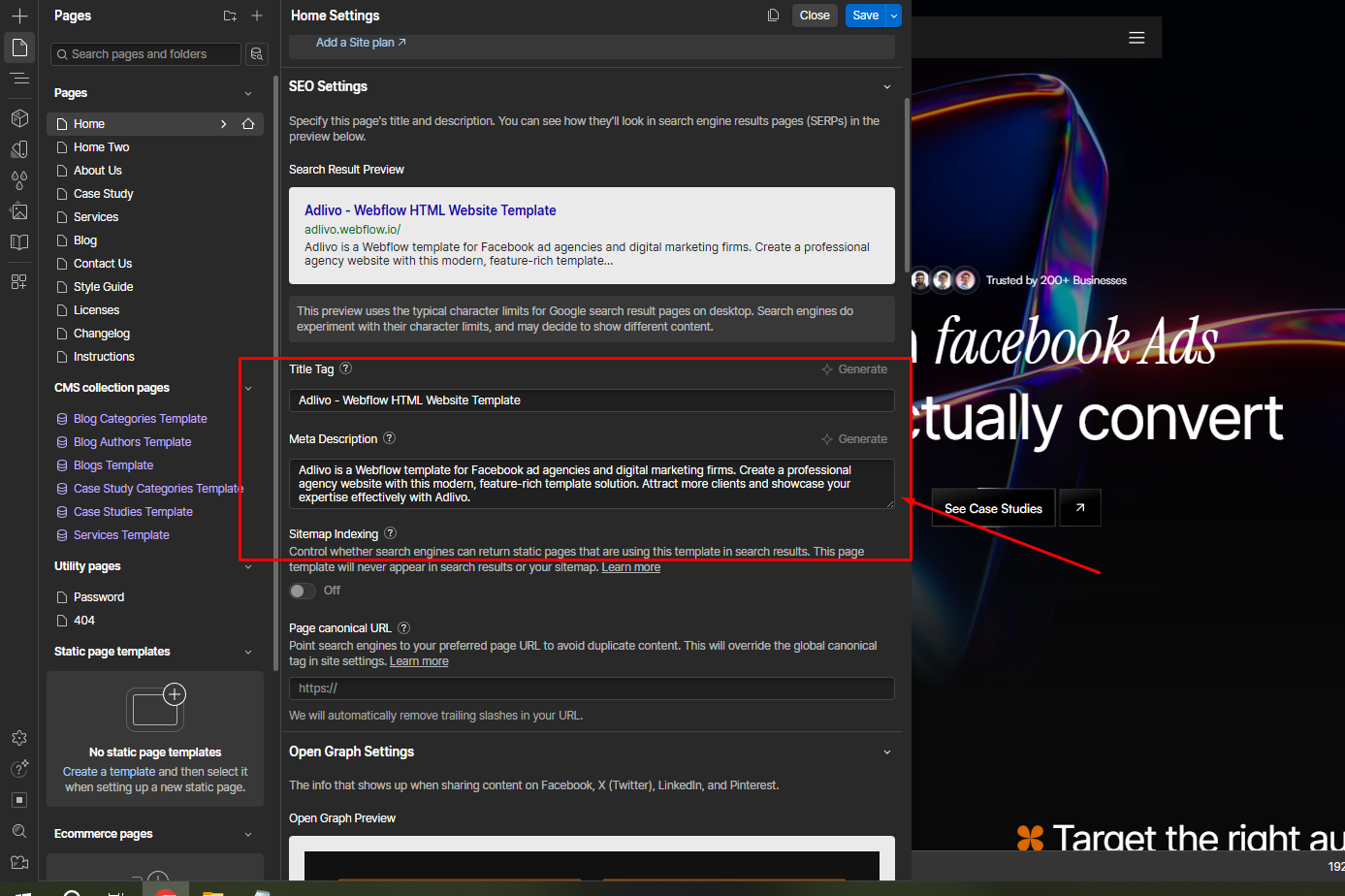
This helps your site rank well and look great when shared.
- Open Page Settings or Custom Code from site setting → Before </body> tag or footer code.
- Paste the code bellow:
<script>

// counter animation

window.Webflow = window.Webflow || [];
window.Webflow.push(function () {
  const counters = document.querySelectorAll(".counter-animate");

  function runCounter(el) {
    let raw = el.textContent.trim();
    let numeric = raw.replace(/[^0-9.,-]/g, "").replace(/,/g, "");
    let target = parseFloat(numeric);
    if (isNaN(target)) return;

    let decimals = (numeric.split(".")[1] || "").length;
    let duration = parseFloat(el.getAttribute("data-duration")) || 2;

    let obj = { value: 0 };
    el.textContent = (0).toFixed(decimals).replace(/\B(?=(\d{3})+(?!\d))/g, ",");

    gsap.to(obj, {
      value: target,
      duration: duration,
      ease: "power1.out",
      onUpdate: () => {
        el.textContent = obj.value
          .toFixed(decimals)
          .replace(/\B(?=(\d{3})+(?!\d))/g, ",");
      }
    });
  }

  // Intersection Observer for all counters in the viewport
  let observer = new IntersectionObserver(entries => {
    // Collect all visible counters
    let visibleCounters = [];
    entries.forEach(entry => {
      if (entry.isIntersecting) visibleCounters.push(entry.target);
    });

    if (visibleCounters.length) {
      // Animate counters **staggered**
      visibleCounters.forEach((el, i) => {
        setTimeout(() => runCounter(el), i * 300); // 300ms stagger
        observer.unobserve(el); // Only run once
      });
    }
  }, { threshold: 0.2 });

  counters.forEach(el => observer.observe(el));
});
</script>- Select any heading or text block.
- Wrap only the number portion of the text in a
<span>. - Add the class name "Counter Animate" to that span.
Use the data-duration attribute to adjust the counter animation duration.